

Introduction
Choosing the right colors for a website sounds simple until you actually start building.
You pick one nice color, then suddenly you need a matching background, readable text, button colors, hover colors, border colors, and maybe a few extra shades for cards, alerts, tables, and call-to-action sections. Before long, your website can start looking mismatched, even when the content itself is good.
That is where Coolors can help.
Coolors is a fast color palette generator and design workflow tool for creators who want to build cleaner, more consistent color systems without spending hours guessing hex codes. For bloggers, affiliate marketers, WordPress users, Elementor creators, and front-end developers, it can become a simple place to create, test, save, and reuse website color palettes.
In this Coolors review, we will look at what Coolors does, who it is best for, how it can help with Elementor and Tailwind CSS, what you get with the free and Pro plans, and whether it is worth using for your next website project.
What Is Coolors?
Coolors is an online color palette generator that helps you create matching color schemes for websites, apps, graphics, branding, and digital content.
The main idea is simple: you open the generator, press the spacebar, and Coolors creates a color palette. If you like one of the colors, you can lock it and continue generating the remaining colors around it. This makes it much faster than manually testing random color combinations inside your website builder or CSS file.
Coolors is not only a random color generator. It also includes tools for exploring popular palettes, extracting colors from images, checking color contrast, previewing palettes on sample designs, creating gradients, and exporting color values for design and development work.
For a website creator, that means Coolors can become a small but useful part of your design system workflow. Instead of guessing your brand colors each time you create a new section, you can save a palette and reuse the same colors across your pages, buttons, headings, cards, and banners.
Who Is Coolors Best For?
Coolors can be useful for many types of creators, but it is especially helpful for:
WordPress and Elementor Users
If you build websites with WordPress and Elementor, Coolors can help you choose a clean color palette before you start styling your page. You can then move those colors into Elementor Global Colors so your whole website stays consistent.
Bloggers and Affiliate Marketers
For affiliate websites, design trust matters. A clean color palette can make review articles, comparison tables, call-to-action boxes, and product cards look more professional. Coolors gives you a faster way to build that visual consistency.
Front-End Developers
If you work with HTML, CSS, JavaScript, Tailwind CSS, or other front-end tools, Coolors can help you create reusable color tokens. You can copy hex codes, RGB, HSL, CSS values, or Tailwind-friendly color ideas into your project.
Small Business Owners
If you are building your own brand without hiring a designer, Coolors gives you a beginner-friendly way to create a visual identity. You can start with one color from your logo or product image and build a matching palette around it.
Content Creators
If you create thumbnails, social posts, Pinterest graphics, YouTube banners, or blog images, Coolors can help you keep your visual style consistent across platforms.
Key Coolors Features
Coolors has several tools, but these are the ones most useful for website creators.
- Color Palette Generator
The palette generator is the main Coolors feature. You press the spacebar to generate a palette, lock any colors you like, and continue generating until the full palette feels right.
This is useful when you know the feeling you want but do not yet know the exact colors. For example, you might want a website to feel clean, warm, modern, premium, natural, bold, or calm. Coolors lets you test many directions quickly.
For website work, you can use the palette generator to choose:
• background colors,
• text colors,
• button colors,
• accent colors,
• card or section backgrounds,
• border colors,
• hover colors.
A good workflow is to avoid using every color equally. Instead, give each color a job.
Example:
• light neutral color for the page background,
• dark color for body text,
• strong accent color for buttons,
• softer secondary color for cards or highlights,
• border color for tables and containers.
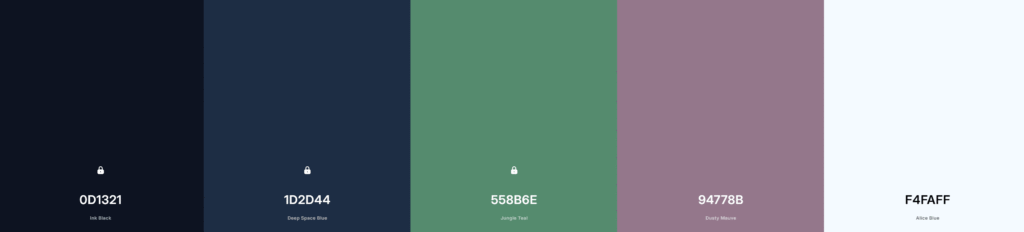
Coolors makes palette testing quick: lock the color that feels right, regenerate the remaining colors, and keep refining until the set has clear roles for text, backgrounds, buttons, and accents.
- Explore Palettes
Coolors has an Explore section where you can browse ready-made color palettes. This is helpful when you do not know where to start.
For example, you can look for styles such as:
• minimal,
• modern,
• vintage,
• dark,
• pastel,
• luxury,
• nature,
• technology,
• warm,
• neutral.
This is especially useful for bloggers and small business owners who do not have a design background. You can study existing palettes, save the ones you like, and adjust them to fit your own brand.
The important thing is not to copy a palette blindly. Use it as inspiration, then check whether the colors work for your website layout, readability, and call-to-action buttons.
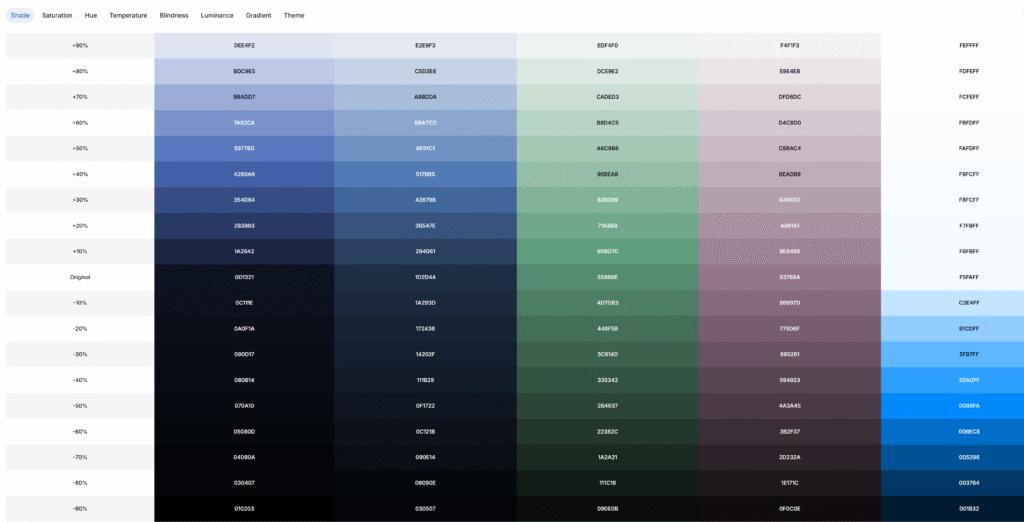
The controls make it easier to review shade, saturation, hue, temperature, color-blindness previews, luminance, gradients, and theme direction before you move the palette into your website.
- Image Picker
The Image Picker is one of the most practical Coolors tools for website creators.
If you already have a logo, product image, hero image, or brand photo, you can use Coolors to extract colors from that image. This helps your website colors match the visual assets you already plan to use.
For example, if you are writing a product review, you could upload a product image and extract a matching set of colors for:
• the review summary box,
• button accents,
• section borders,
• comparison table highlights,
• image captions.
This can make your article feel more polished because the page colors and images look connected rather than random.
For Tebarato-style review pages, the practical value is simple: start with the real image you plan to publish, extract a few useful colors, then keep only the colors that improve readability and trust.
- Contrast Checker
A beautiful color combination is not enough if people cannot read your text.
Coolors includes a contrast checker that helps you test text color against background color. This matters because low contrast can make your website hard to read, especially for people with vision difficulties, older readers, or users viewing your site on bright screens.
For affiliate websites, readability is also connected to trust. If your call-to-action button text is hard to read, or your comparison table is too light, people may leave before they click anything.
Use the contrast checker for:
• button text and button background,
• body text and page background,
• table text and table row colors,
• heading text and hero section background,
• badges, labels, and affiliate CTA boxes.
A simple rule: before publishing an important page, test your main text, buttons, and CTA sections for contrast.
This is one of the checks worth doing before a page goes live, especially for buttons, comparison tables, and affiliate call-to-action sections where clarity affects both trust and clicks.
- Palette Visualizer
Sometimes a palette looks good as five color blocks, but it may not work well on a real design.
The Palette Visualizer helps you preview colors on sample layouts and design examples. This gives you a better sense of how the palette may look when used across a real interface.
This is useful before moving the colors into WordPress, Elementor, or your CSS. You can check whether your accent color is too strong, whether your background feels too dark, or whether the palette has enough contrast between sections.
- Gradients and Extra Design Tools
Coolors also includes tools for gradients, color picking, SVG recoloring, collage creation, and other design tasks.
For website creators, the gradient tool can be useful for:
• hero backgrounds,
• call-to-action banners,
• section dividers,
• social graphics,
• feature cards.
However, use gradients carefully. A subtle gradient can make a section look modern, but too many gradients can make a website feel busy or amateur. For TEBARATO-style affiliate content, the safest approach is usually clean backgrounds, readable text, and a strong but controlled accent color.
How to Use Coolors with Elementor
For WordPress creators using Elementor, Coolors is useful because it helps you decide your colors before you start styling individual widgets.
Instead of changing colors one widget at a time, use Coolors to create your palette first, then add the main colors to Elementor Global Colors
Step 1: Create a Practical Website Palette in Coolors
Start with a 4–5 color palette. Give each color a role.
Example role structure:
• Primary Brand Color: your main brand color.
• Accent Color: the color for buttons and important links.
• Text Color: a dark readable color for paragraphs.
• Background Color: a light color for the page background.
• Soft Section Color: a gentle color for cards, boxes, or highlights.
For TEBARATO, this is the kind of thinking we want: not just “nice colors,” but colors that have jobs.
Step 2: Test the Important Color Pairs
Step 2: Test the Important Color Pairs
Before moving the colors into Elementor, test these pairs in the Coolors Contrast Checker:
• text color on background color,
• button text on accent color,
• heading color on hero background,
• table text on table background,
• CTA box text on CTA background.
This helps you avoid the common mistake of choosing a beautiful accent color that looks terrible with white or black text.
Step 3: Add the Colors to Elementor Global Colors
In Elementor, go to your Site Settings or Global Colors area and update your global color system.
A simple setup could be:
• Primary: your main brand color,
• Secondary: your supporting color,
• Text: your main body text color,
• Accent: your button or CTA color.
Once your global colors are set, use those colors across your headings, buttons, containers, cards, and links.
This makes your website easier to maintain. If you later change your accent color, you can update it globally instead of editing every button manually.
A clean setup keeps the palette practical: one primary brand color, one accent color, one readable text color, and one calm background or section color.
Step 4: Use Coolors for TEBARATO Article Components
If you are building an affiliate review article, you can use your Coolors palette for repeated article components like:
• product summary cards,
• pros and cons boxes,
• comparison tables,
• “Best For” badges,
• affiliate disclosure boxes,
• final verdict banners,
• call-to-action buttons.
This is where Coolors becomes more than a design toy. It becomes part of your publishing workflow.
How to Use Coolors with Tailwind CSS
Coolors can also be useful for front-end developers using Tailwind CSS.
The exact workflow depends on which Tailwind version your project uses, but the idea is the same: create a palette in Coolors, then turn those colors into reusable design tokens.
For Tailwind CSS v4
Tailwind CSS v4 uses theme variables with the @theme directive. That means you can define custom color variables in your CSS and Tailwind can generate utility classes from them.
Example:
@import “tailwindcss”;
@theme {
–color-brand-50: #effaf5;
–color-brand-100: #d8f3e5;
–color-brand-500: #2f9e74;
–color-brand-700: #1f6f52;
–color-brand-900: #123d30;
}
After that, you can use utility classes such as:.bg-brand-500
For Tailwind CSS v3
If your project still uses Tailwind v3, you may define custom colors in tailwind.config.js.
Example:
module.exports = {
theme: {
extend: {
colors: {
brand: {
50: ‘#effaf5’,
100: ‘#d8f3e5’,
500: ‘#2f9e74’,
700: ‘#1f6f52’,
900: ‘#123d30’,
},
},
},
},
};
Then you can use classes such as bg-brand-500 text-white for buttons and text-brand-700 for strong links.
Why This Matters for Developers
Without a color system, developers often end up with scattered hex codes across different files. That makes the project harder to maintain.
With a palette-based workflow, your colors become more organized. You can build buttons, cards, navigation bars, alerts, and layouts using consistent values.
Coolors helps with the creative part, while Tailwind helps you apply those colors quickly in your code.
For developers, the win is maintainability. Once the palette becomes named tokens, the same colors can be reused across cards, buttons, headings, and layout sections without scattered one-off hex codes.
Free vs Pro: What Do You Actually Get?
Coolors has a useful free plan, and many casual users can start without paying. The free plan is good for testing the tool, creating basic palettes, and working on a small number of projects.
At the time of writing, the free account includes limits such as:
• saving up to 10 palettes,
• having 1 project and 1 collection,
• saving up to 5 favorite colors.
That is enough for a blogger, student, or small website owner who only needs a few palettes.
Coolors Pro is more suitable if you create designs regularly or manage multiple websites. Pro adds features such as:
• removing ads,
• generating palettes with up to 10 colors,
• saving unlimited palettes,
• using unlimited projects and collections,
• saving unlimited colors,
• accessing more advanced exports and extra workflow tools.
Pricing and features can change, so always check the official Coolors pricing page before upgrading.
Free Plan Is Best For
The free plan is best for:
• beginners,
• bloggers,
• small website owners,
• one-site projects,
• simple brand color planning,
• testing Coolors before committing.
Pro Plan Is Best For
The Pro plan is best for:
• freelance web designers,
• agency creators,
• front-end developers,
• people managing multiple websites,
• creators who need organized folders and unlimited saved palettes,
• users who want a cleaner ad-free workflow.
Coolors Pros and Cons
Pros
Coolors is fast and beginner-friendly. You do not need to understand advanced color theory to start creating useful palettes.
It is also practical for real website work because it gives you usable color values such as HEX, RGB, HSL, and CSS-ready outputs.
The image picker is very helpful when you want your website colors to match a logo, product image, or brand photo.
The contrast checker is a valuable tool because it helps you avoid publishing unreadable buttons, headings, and content sections.
The ability to save palettes and organize projects makes Coolors more useful over time, especially if you work on more than one site.
Cons
The free version has account limits, so heavy users may outgrow it.
Some advanced workflow features are locked behind the Pro plan.
Beginners may still need to learn how to apply colors properly. Coolors can generate a palette, but it does not automatically decide the best color role for every website element.
A palette can look good in Coolors but still look weak on a real website if contrast, spacing, typography, and layout are poor.
Coolors vs Adobe Color vs Canva Colors
Coolors is not the only color tool available. Here is a simple comparison.
Coolors vs Adobe Color
Coolors vs Adobe Color
Adobe Color is powerful and useful for people who want deeper color theory controls and strong Adobe ecosystem integration.
Coolors feels faster and simpler for quick palette generation. For website creators who want to move quickly from idea to implementation, Coolors may feel easier to use.
Coolors vs Canva Colors
Canva Colors is friendly and useful for social media graphics and simple brand inspiration.
Coolors is stronger for website and developer workflows because it focuses more on palette generation, saved palettes, exports, contrast checking, and design-system thinking.
Coolors vs Manual Color Picking
You can choose colors manually, but it usually takes longer. Manual color picking also increases the risk of inconsistent shades across your site.
Coolors gives you a more organized starting point. You still need design judgment, but the workflow is faster.
Is Coolors Worth It?
Yes, Coolors is worth using if you build websites, write blog content, create affiliate pages, design social graphics, or work with front-end styling.
It will not magically make you a professional designer overnight. It will not fix poor layout, weak typography, low-quality images, or bad content. But it can help you make better color decisions faster.
For TEBARATO-style website work, the biggest benefits are:
• faster color selection,
• better visual consistency,
• easier Elementor Global Colors setup,
• cleaner Tailwind color planning,
• stronger CTA and button contrast,
• more professional-looking article components.
If you are just starting, use the free plan first. Build one palette, test your contrast, and apply it to a real page. If you later manage more projects or want more saved palettes and advanced workflow features, then the Pro plan may be worth considering.
A Simple Coolors Workflow
Start with one color that already belongs to the brand or article. Generate a small palette around it, test the main text and button contrast, then move only the useful colors into Elementor Global Colors or your CSS tokens. That keeps the page calm, readable, and easier to maintain.
Simple workflow checklist:
- Open Coolors and generate a palette.
- Lock one brand color and generate matching colors.
- Test text and button contrast.
- Copy hex codes into Elementor Global Colors.
- Show a simple Tailwind v4 @theme color setup.
- End with a call-to-action to try Coolors.
Frequently Asked Questions
Is Coolors free to use?
Yes, Coolors has a free plan that lets you use many of its core features. The free account has some limits, such as saved palettes, projects, collections, and favorite colors. For many beginners and small website owners, the free plan is enough to start.
What is Coolors Pro?
Coolors Pro is the paid version. It removes ads and unlocks more advanced workflow features, including more saved palettes, more projects and collections, more favorite colors, larger palettes, and extra export options.
Can I use Coolors for Elementor?
Yes. Coolors works well with Elementor because you can create your palette first, copy your hex codes, and add them to Elementor Global Colors. This helps keep your website colors consistent across buttons, headings, containers, and templates.
Can I use Coolors with Tailwind CSS?
Yes. You can use Coolors to choose your brand colors and then add those colors to your Tailwind setup. For Tailwind v4, you can define color tokens using @theme. For Tailwind v3, you can add custom colors in tailwind.config.js.
Does Coolors help with accessibility?
Coolors includes a contrast checker that helps you test text and background color combinations. This is useful for checking whether your website text, buttons, and call-to-action sections are readable.
Is Coolors good for affiliate websites?
Yes, especially if your affiliate website uses review cards, comparison tables, call-to-action buttons, product boxes, and reusable article sections. A consistent color palette can make those sections look more trustworthy and professional.
Should beginners use Coolors?
Yes. Coolors is beginner-friendly because you can start by pressing the spacebar to generate palettes. However, beginners should still learn basic design principles such as contrast, readability, spacing, and color roles.
Final Thoughts
Final Thoughts
Coolors is one of those tools that looks simple at first but becomes more useful when you connect it to a real workflow.
For a casual user, it is a fast color palette generator. For a website creator, it can become the starting point for a cleaner design system. For Elementor users, it helps organize Global Colors. For developers, it helps turn brand colors into reusable CSS or Tailwind tokens.
If you are building a blog, affiliate site, landing page, or small business website, Coolors is worth trying. Start free, create one practical palette, test the contrast, and use the colors consistently across your design.